
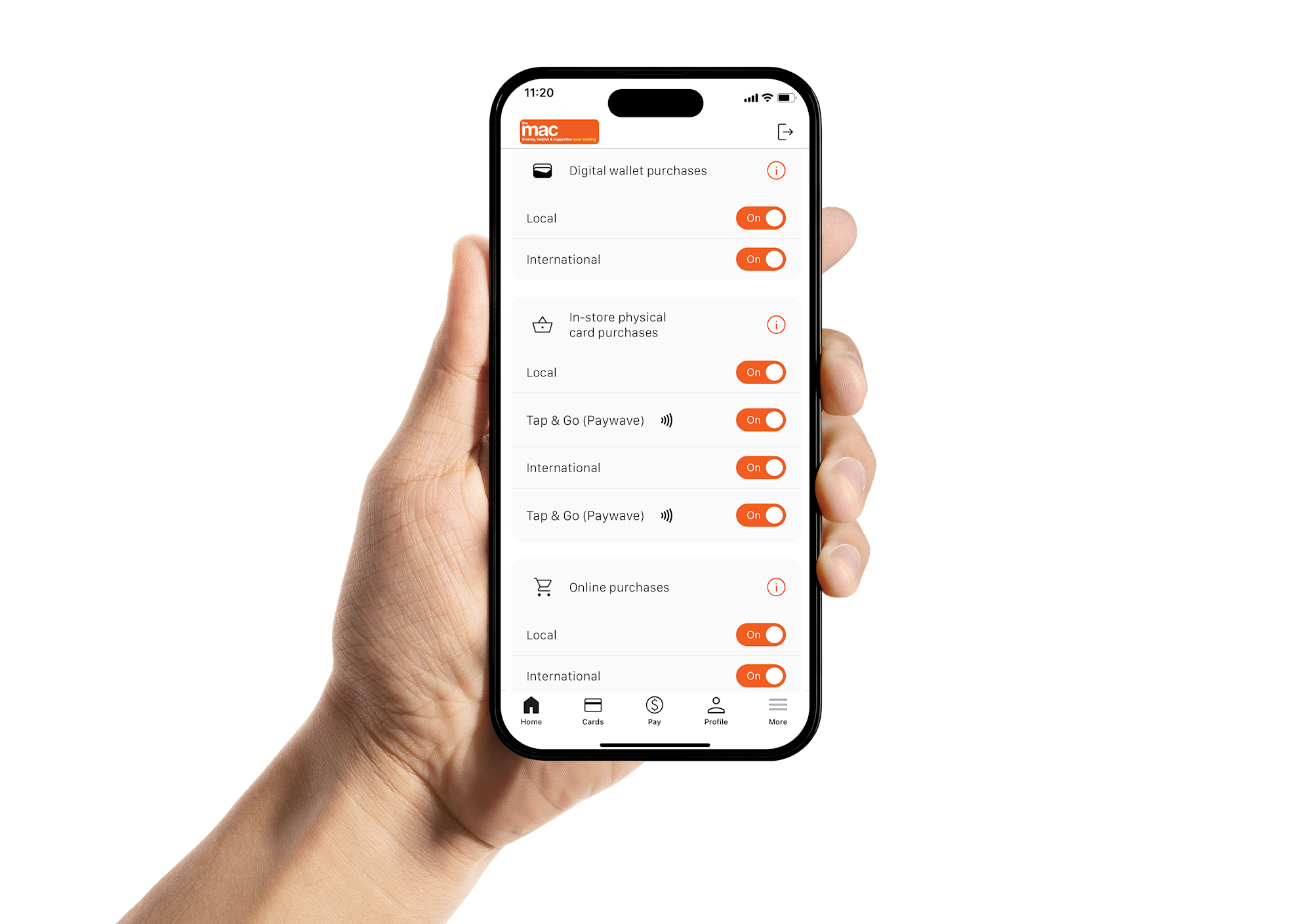

Types of Controls

Digital wallet purchases

Manage your purchases through digital wallets such as Apple Pay or Google Pay. 

In-store Physical card purchases

Don't want to use your physical card instore? Simply tap to turn your options on and off. You can even choose to switch off Tap & Go if that's your preference. 

Online Purchases

Turn off the option to use your card for online shopping or website transactions.
Keep in mind, to provision your card in your digital wallet through your device, International needs to be turned on under Online Purchases.

ATM Withdrawals

If your preference is to avoid cash - you can simply turn off the option to be able to withdraw cash from an ATM.

How to Access Card Controls

Card Controls are available through The Mac App. For your security and protection, our team aren't able to set these up on your behalf, but are more than happy to have a chat and help you if you have any questions. 

Managing your card settings is as easy as 1, 2, 3.

  1. Tap the 'Cards' tab in The Mac App (you'll need to be logged in)
  2. Swipe to the card you'd like to manage and then scroll down to see the options
  3. Simply toggle the features on and off

Use The Mac App or Online Banking to have more control

Set or Change your PIN

You can use The Mac App or Online Banking to set or change your personal PIN for your Visa Debit card at any time.

Remember to always protect your PIN! Keep it secure, memorise it and never share it with anyone

Temporary Card Lock

Can't find your card? You can use the Lock Card feature while you look for it, then unlock it again when you find it. Our temporary card lock features provides security and saves the hassle of cancelling your card and getting a replacement. 
While locked, no purchases can be made using your card. 

Lost, Stolen & Damaged Cards

You can use The Mac App or Online Banking to report your card as Lost, Stolen or Damaged. This will pop an immediate stop on your card and you'll be advised to contact our team to organise a new card.